Cuvex BIT installation and user's manual
Now available from our official store
What does Cuvex BIT include?

Cuvex BIT box and device with a tamper-proof security seal for maximum protection.
- 1 Cuvex BIT Device.
- 1 High-quality USB-C Cable.
- 3 NFC Cards ready to encrypt your seed phrase or cold wallet.
- 1 MicroSD Card for cryptograms with biometrics.
- 1 USB-C to MicroSD adapter.
- 1 Set of 4 colored dice, to generate your seed phrase with physical. entropy, manual, sovereign, and truly random.
- 1 Exclusive CUVEX Sticker.
- 1 Welcome Card with a QR Code to the user manual.
- 1 Warning Card.
The Cuvex BIT device introduces the following enhancements compared to the original Cuvex device:
-
Exclusive USB-C Communication with the Cuvex Smartphone App. Communication is exclusively handled via USB-C using the Cuvex smartphone app.
-
Cryptograms can be created with or without biometric authentication. Biometrics act as an additional parameter alongside each signer’s password. In other words, each signer’s password is always required, and biometric authentication may optionally be required as well. This mechanism enforces the physical presence of all required signers.
Important:
Cryptograms that include biometric protection cannot be decrypted using the Cuvex desktop app. Decryption will always require a Cuvex BIT device.
-
Cryptogram Storage in the Smartphone’s Secure Element via the Cuvex App.
From the app, cryptograms can be cloned to different storage media depending on their type:
Cryptograms without biometrics, single-signature and multi-signature with all signers mandatory:
-
Standard Cuvex cards
-
External USB-C storage devices (USB flash drives)
X-of-6 multi-signature cryptograms without biometrics, where not all signers are mandatory:
-
Cuvex 8K cards
-
External USB-C storage devices
Cryptograms with biometrics:
-
Can only be cloned to external USB-C storage devices connected to the smartphone.
Functional Compatibility
The Cuvex BIT device retains exactly the same functionality and operational workflows as the original Cuvex device.
The only relevant difference and the one addressed in this manual is the communication method between the Cuvex BIT device and the Cuvex smartphone app.
The specific changes to the operational workflows required to properly use the Cuvex BIT are described below.
Connectivity and Usage Requirements
The Cuvex BIT device communicates exclusively via USB-C.
It does not include Bluetooth or NFC connectivity.
This means that all operational workflows must be performed with the device connected from the outset to the Cuvex smartphone app via a USB-C cable.
Mandatory Requirements
To operate the Cuvex BIT, the following are required:
-
An Android or iOS smartphone with USB-C port
-
The Cuvex smartphone app installed
The smartphone’s USB-C port provides both electrical power and the data channel required for communication between the Cuvex BIT device and the app.


SECURITY NOTICE – POWER SUPPLY AND USE
The Cuvex device is designed to operate when connected to a compatible smartphone or an equivalent certified USB power source that provides 5 V DC, up to 250 mA.
The USB-C port provides both power and data communication required for interaction with the Cuvex application.
Do not connect the device to non-certified, defective, or improperly protected power sources. Using power supplies that do not meet the specified electrical characteristics may result in hazardous electrical conditions, including the risk of electric shock.
Operation outside the specified conditions constitutes use outside the intended design parameters and may compromise the device’s safety protections.
Communication Logic
The Cuvex BIT device does not establish a direct communication channel with the Cuvex app.
Instead, the device dynamically creates an external USB storage unit, which the smartphone and the app use to exchange files. Functionally, the device behaves like a virtual USB flash drive.
This storage unit:
-
Is named “Cuvex”
-
Contains an internal folder also named “Cuvex”
-
Is automatically created and unmounted by the device for each process that requires it
For the app to read or write data, the user must explicitly authorize access to this storage unit and to the “Cuvex” folder through the smartphone’s operating system file manager.
Operation is equivalent to connecting an external USB flash drive to the smartphone, with the difference that:
-
The flash drive is named Cuvex
-
The shared folder is named Cuvex
-
Control is governed by the Cuvex BIT device itself
Workflow Initiation Recommendations
Workflows that should be initiated on the Cuvex BIT device
It is recommended to initiate from the device itself any workflows that require the USB storage unit to be mounted in advance, such as:
-
Firmware updates
-
Cryptogram decryption
-
PSBT transaction signing
When these processes are initiated from the device, it automatically creates the storage unit and shared folder and then waits for the app to write the required data.
Workflows that can be initiated directly on the device
Processes such as:
-
Secret encryption
-
Bitcoin wallet creation
can be initiated directly on the device. Once completed, the app can access the created shared folder to retrieve the corresponding information.
In all cases, both the app and the device guide the user, indicating when it is necessary to initiate the process on the other end and when to authorize read/write access. The workflow is designed to be clear and unambiguous.
Operational Summary
-
All functional workflows of the Cuvex BIT and the original Cuvex device are equivalent.
-
The only difference lies in the data import and export method.
-
On the original Cuvex, cryptograms were exported via NFC.
-
On the Cuvex BIT, cryptograms are exported via USB-C to the Cuvex app, where they:
-
Are stored in the smartphone’s secure element
-
Can be cloned to:
-
NFC cards (cryptograms without biometrics only)
-
External USB-C storage devices (all cryptogram types)
-
-
Communications are fully isolated, since:
-
There is no direct App ↔ Device communication channel
-
Only files are exchanged through a folder governed by the Cuvex BIT device itself
-
Exchanged data is either encrypted or consists of non-sensitive metadata
ADDITIONAL SUPPORT
In the available video tutorials, you can see practical demonstrations of how to:
-
Authorize the shared folder
-
Establish USB-C communication
-
Correctly execute workflows between the device and the app
For all other internal functionalities (screen-by-screen operation), please refer to the original Cuvex manual, as both devices share exactly the same processes, except for those described in this document.
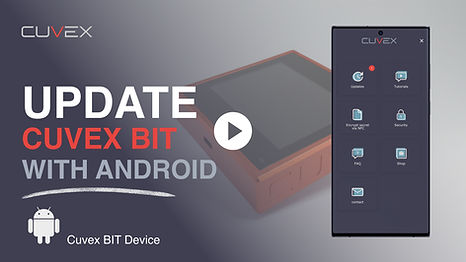
1. First step, watch the video to install the device firmware.

2. Encrypt a seed phrase or a text secret with biometric or not
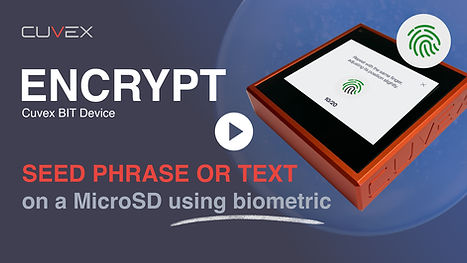

In this video, you’ll see a concrete example of how a seed phrase is encrypted and sent to your smartphone’s secure element, with the backup stored on a MicroSD card using single-signature biometric authentication during the process.
By following this same workflow, you can also encrypt a plain-text secret or a BTC wallet created with sovereign entropy using the Dice and Coin method.
In this video, you’ll see a concrete example of how plain text is encrypted in your smartphone’s secure element, with the backup stored on an NFC card without using biometrics.
By following this same workflow, you can also encrypt a seed phrase or a BTC wallet created with sovereign entropy using the Dice and Coin method.
3. Decrypt a cryptogram

There is no direct communication between the device and the Cuvex smartphone app. Data is exchanged through an external storage medium that the Cuvex device mounts and unmounts. The user is always the one who grants permission to read from or write to this external storage.
In this way, the ciphertext stored in the smartphone’s secure element is transferred to the device, where we enter our secret key in order to decrypt the information.
4. Always create external backups on NFC cards or microSD if your cryptogram is biometric.
In the app, you’ll see a yellow warning icon on the card if a backup of the cryptogram has not yet been created. It is extremely important to make multiple backups. You can create as many backups as you want on NFC cards, or on MicroSD cards if your cryptogram uses biometrics.
To proceed with the next step, you must connect the USB-C cable to the device and to your smartphone with the Cuvex app installed.

5. Create Wallet with Coin and Dice.

Do you completely trust your current seed? Did you create it with true entropy, or was your seed created by others?
Cuvex helps you by simplifying the sovereign creation of your seed. Our Create seed function delegates the entropy to the Coin and Dice method, requiring your direct participation in the process.There is no safer and higher entropy way than this to create a seed with the best procedure.
6. Activate Watch Only Wallet "WOW"

Once you have created your wallet with sovereign entropy using the dice-and-coin method, the next step is to activate your WOW (Watch-Only Wallet) in the Cuvex smartphone app.
In this video, you will learn how to activate your WOW to send, receive, and manage your BTC balance with the highest level of privacy, enabled by its advanced Coin Control features.
7. PSBT transactions

Maximum security and excellent usability.
Make your PSBT transactions by combining the Cuvex Smartphone App, with a WOW-level user experience, and the Cuvex BIT signing device, fully isolated from the internet.
Only you control your wallet, regardless of what happens in the digital world.
Cuvex helps you set up your transactions with privacy by default through “Coin Control.”